
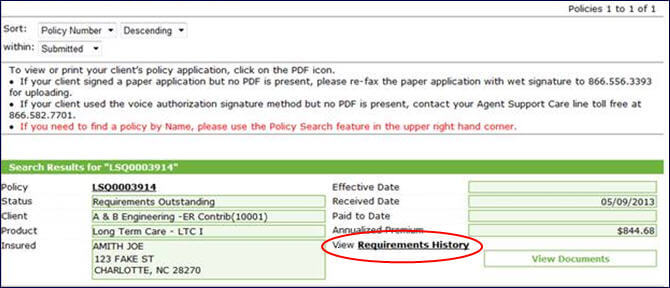
Did you know that you can check on a client’s outstanding underwriting requirements right in your Agent Portal?
This will allow you to help resolve any outstanding requirements and help your clients get through the underwriting process in less time. For some requirements, you will also receive an automated email alert when your assistance is needed with a client’s application.
How to View Outstanding Underwriting Requirements
To view a client’s outstanding underwriting requirements, login to your Agent Portal and select “Your Business” under the Virtual Office tab. Search your submitted business to find your client’s policy, then click on “Requirements History.”
On the next page, you will be able to view all of your client’s underwriting requirements.
Reading Underwriting Codes
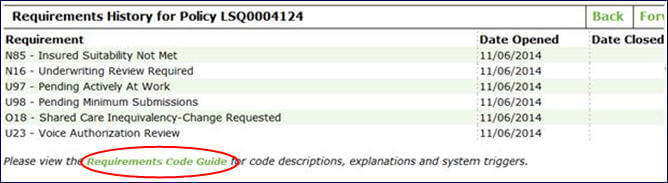
Each underwriting requirement will have a code, title, open date and closed date. A closed date will appear if the requirement has been resolved or canceled, and no further action is required. For a description of the requirement codes and information on the actions required by you or your client, click on our “Requirements Code Guide” as noted above. The underwriting codes fall under three categories:
- N Codes are system driven and generally do not require agent assistance. These will be closed as appropriate during the underwriting review process.
- O Codes can require agent assistance related to licensing requirements. An O18 code does not require agent involvement and will be closed during the underwriting process.
- U Codes represent an underwriting requirement that you may be asked to assist with. Some U Codes, such as U98 and U23 shown above, are simply for informational purposes. LifeSecure’s automated notification system will send you an email alert when your assistance is needed. These alerts can also be viewed in your Agent Portal in the Message Center by clicking “Your Messages” under the Virtual Office tab.
The body of each email will explain what is needed and how to submit the necessary information. Note: don’t forget the Special HIPAA Authorization and other underwriting documents can now be downloaded directly from your Agent Portal by clicking the “View Documents” link as seen in the first image above.
When working collectively, our new and enhanced process helps you and your clients quickly move through underwriting and makes it easier for you to manage your business and better serve your clients.
Final Thoughts
With all of our recent enhancements, here are a few final takeaways:
- It may take 24 hours to receive and close a submitted requirement, which can result in overlap of messages.
- We are unable to receive replies to our automated emails. Please refer to the specific department and contact information noted in the body of the email if you have any questions.
- Please ensure you have provided LifeSecure with your most current email address.
- You can download your own copy of the Requirements Code Guide here